# How to rent a machine
### Select an On-Demand machine
1. On the GPU Cloud page, click the “On-Demand” filter to view all machines available for immediate rental.
### Select machine
**2.** Choose the **template** you want to use from the list.
> **A template** provides pre-installed libraries, allowing researchers to proceed with their work without setting up the environment separately.
### Select a template
**3.** Click the **"Rent"** button, and a machine rental popup will appear where you can review the machine information once again.
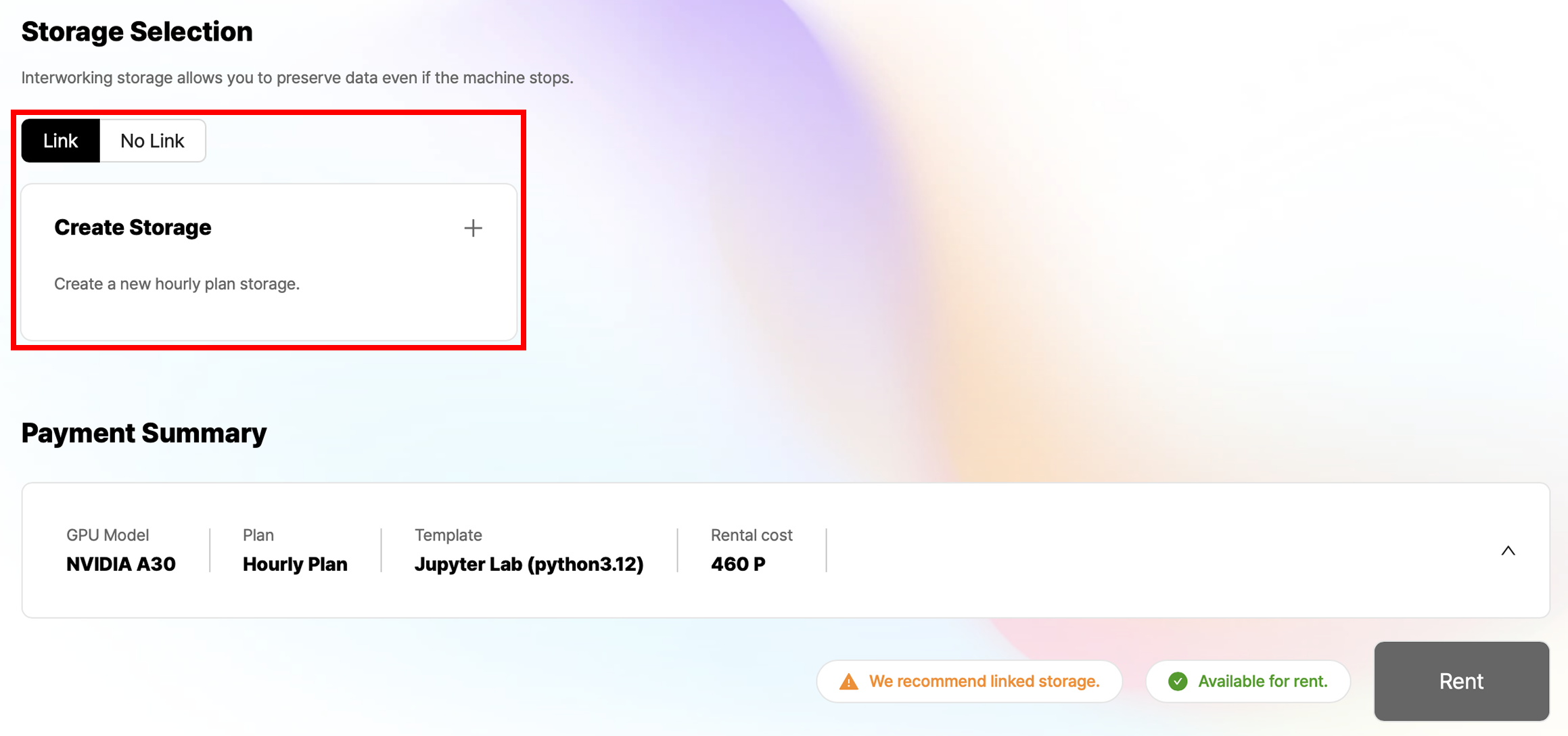
### Storage Interworking
4. If you want to save your working environment and data after returning the machine, link the created hourly storage ([Hourly Storage](https://runyourai.gitbook.io/userguide/eng-runyour-ai/utilize-storage/hourly-storage)) or the assigned long-term storage ([Long-term Storage](https://runyourai.gitbook.io/userguide/eng-runyour-ai/utilize-storage/long-term-storage)) to the machine.
Without linking the storage, only the default storage capacity (1,182GB for A100) will be available. In this case, your working environment and data will be lost when the machine is returned.
Additionally, you can find how to create an hourly storage here ([Create an Hourly Storage](https://runyourai.gitbook.io/userguide/eng-runyour-ai/utilize-storage/hourly-storage/create-an-hourly-storage)) and how to create a long-term storage here ([Create a long-term Storage](https://runyourai.gitbook.io/userguide/eng-runyour-ai/utilize-storage/long-term-storage/create-a-long-term-storage))
If you need to add a port number during the template selection step, please refer to the link below.
{% content-ref url="../../../tutorial/how-to-add-a-port-number" %}
[how-to-add-a-port-number](https://runyourai.gitbook.io/userguide/eng-runyour-ai/tutorial/how-to-add-a-port-number)
{% endcontent-ref %}
You can find out how to set up the port on that page.
### Payment Summary
5. Click the **"Rent"** button to complete the rental process. The machine will be added to your list of **Machine being rented.**
{% hint style="info" %}
**Machines Rental Notes**
* If your available points are **less than the machine's hourly rate, rental will not be possible.**
* Please **recharge your points and try again or select a different machine.**
{% endhint %}
6. In **`My Page > Dashboard > Machines on rent`**, you can click on a rented machine to see connection information, machine details, and template information at the bottom.
7. Copy the **SSH connection information and password** provided in the connection information and enter them into your terminal to use the GPU Cloud service.